
The Challenge
While at Electronic Arts, I was a Quality Verification Tester.
The Project
The project involved testing crossplay features in World of Chel and Hockey Ultimate Team for NHL 23.
My Role
I was responsible for conducting weekly smoke tests, throughout the development cycle. Found bugs and wrote bug reports using Jaas, JIRA and Devtrack. Captured bug data in game, using the juice client. Provided qualitative feedback regarding the product. Followed up with development and testing partners to ensure bugs are being logged and resolved. Maintained the Quality Assurance pipeline from discovery through a fix to regression verification. Shipped first full length AAA title in NHL 23.
Date
August 2022 to December 2022
Crossplay First Boot
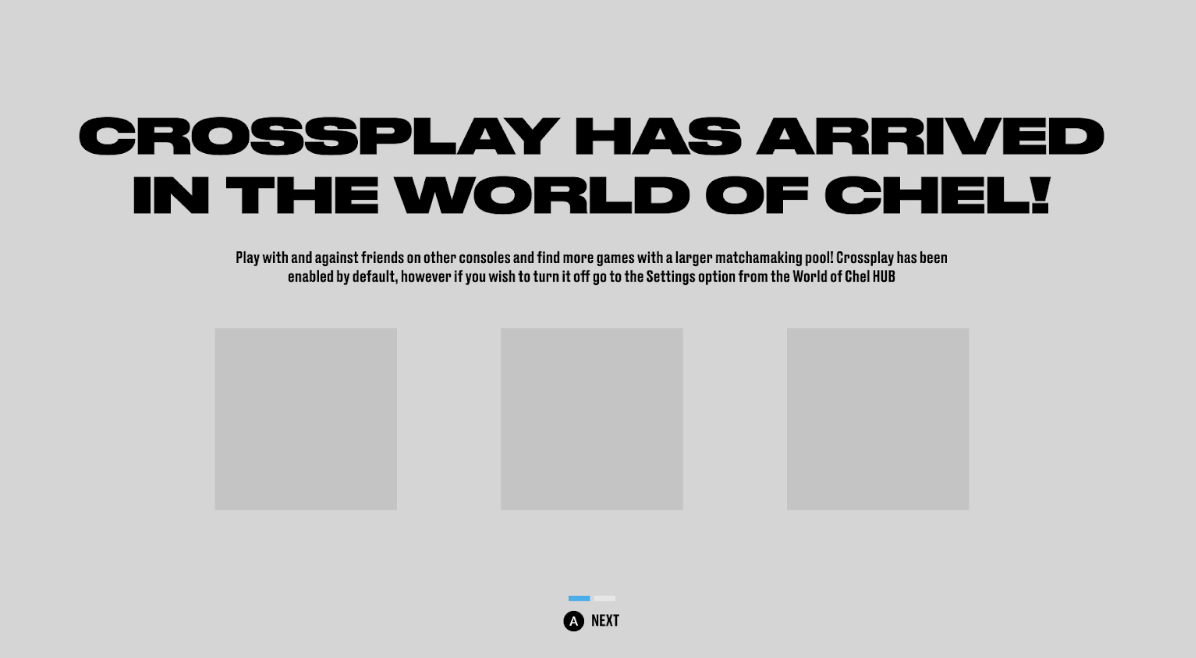
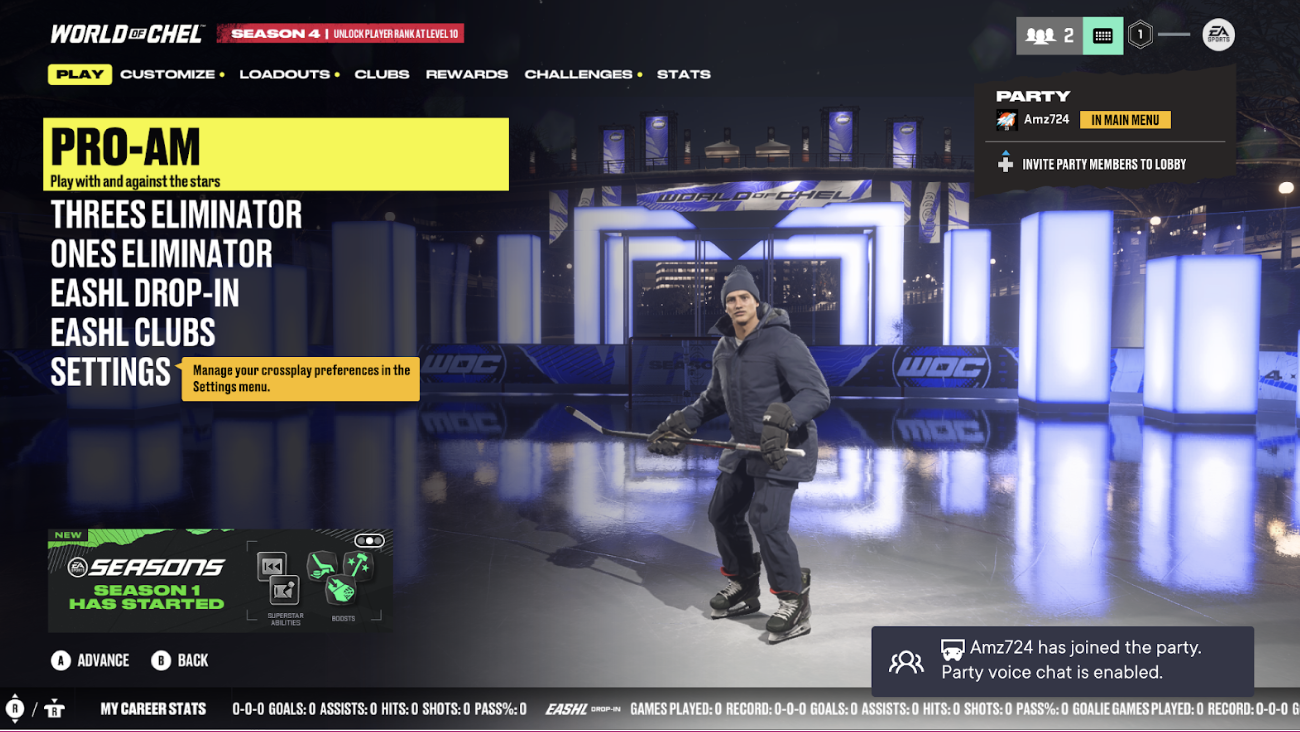
To make sure most of our users experience the advantages of Xplay, upon first boot, when entering WOC, all users will have XPlay enabled by default. In order to make sure that users understand that but also to ensure 1P compliance, we will need to prompt all users with a one time pop-up informing them about this change, and explaining the steps that need to be followed in case they would want to disable XPlay.
Having Xplay as a critical feature addition to WOC, this UM will be prompted to all users entering WOC for the first time. This UM will be displayed immediately after the Loading screen into World of Chel and prior to any privilege or roster checksFor the Xplay 1st time pop-up we will use a UM, however, in terms of look and feel, the UM needs to be integrated visually and UX wise with the rest of the FTUE experience.

Crossplay Enable/Disable Toggle
The master setting for Crossplay as indicated below will ‘live’ in the WOC Main Settings screen and will be represented by an additional tile indicating the title of the setting as well as the current state - ON/OFF.
The Crossplay setting will not be accessible during the Pause Menu or EOM but will be visible, being grayed out and displaying the status of the setting.
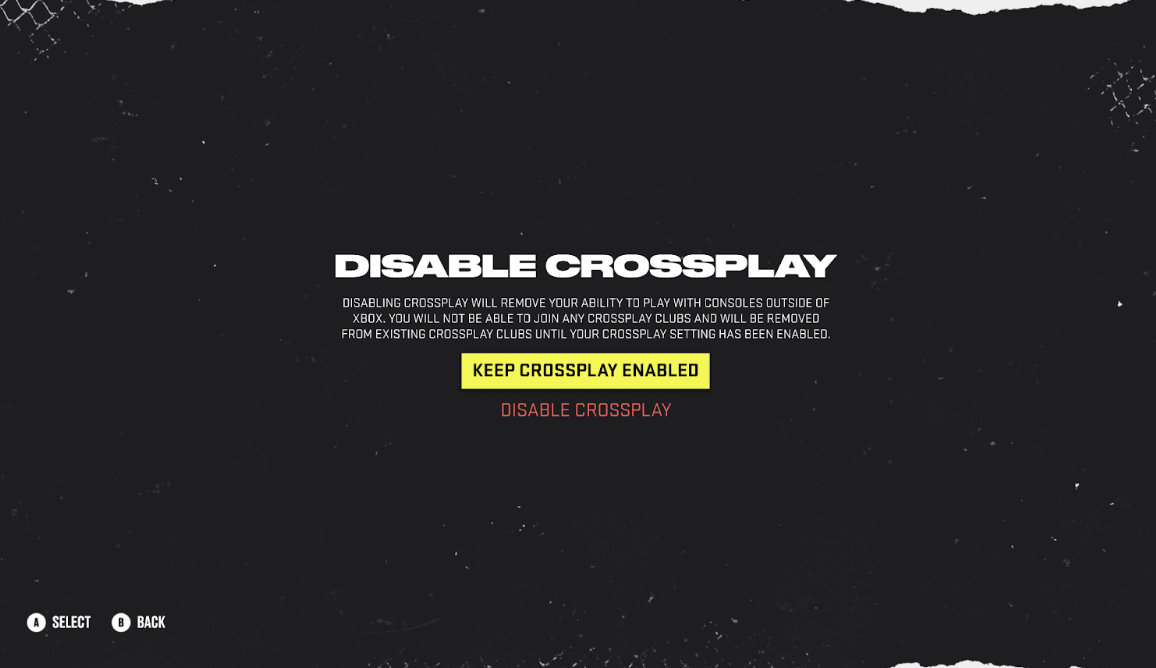
Any change of the setting will need to go through the confirmation pop-up which in order to avoid accidental changes.
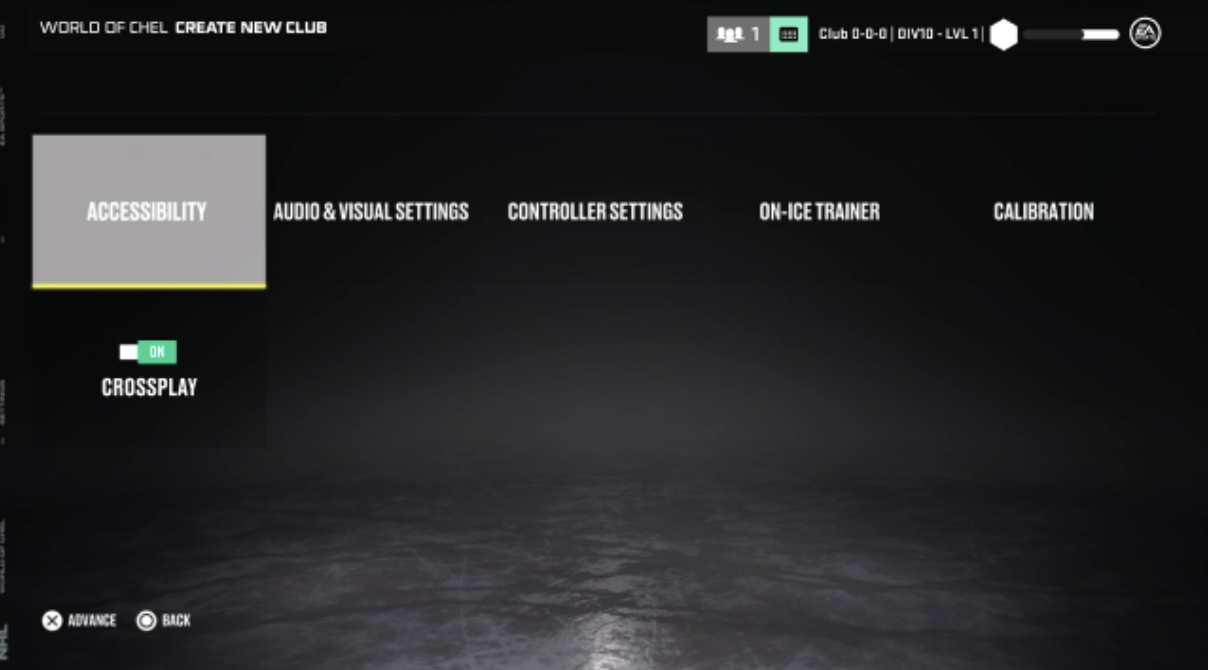
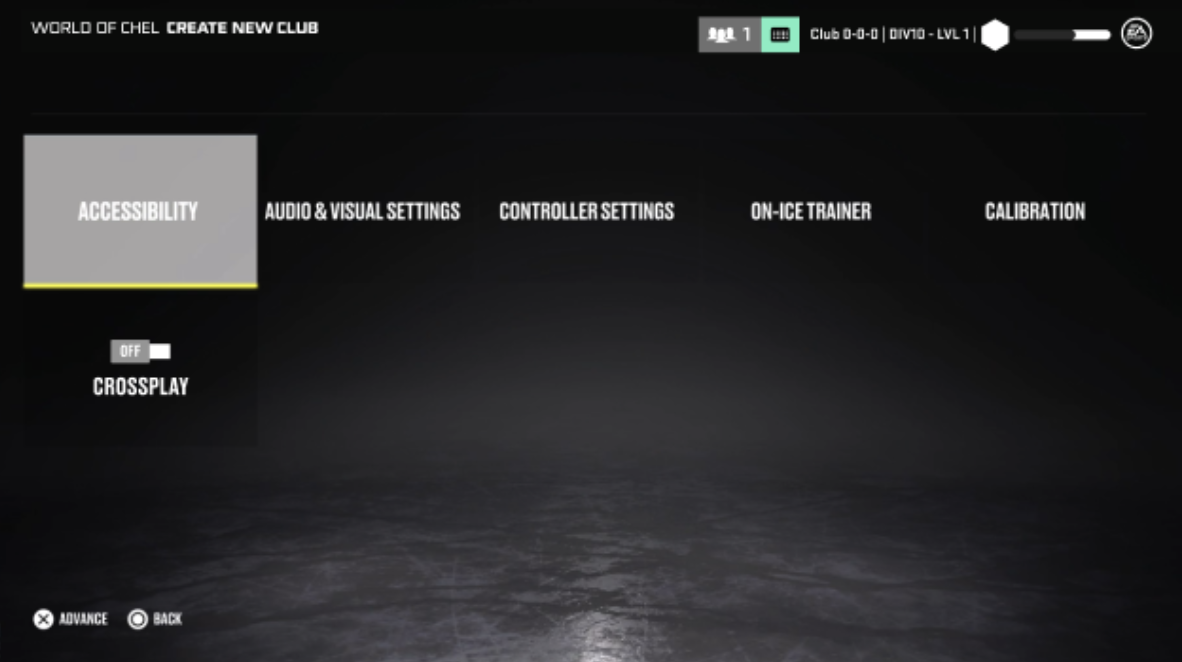

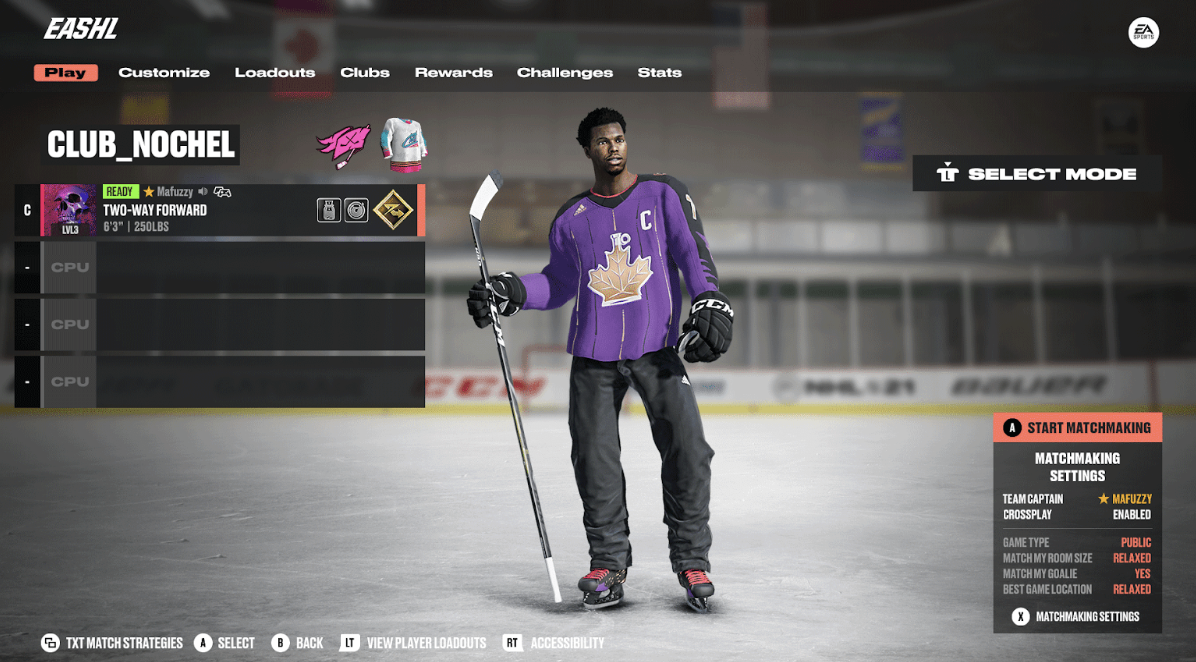
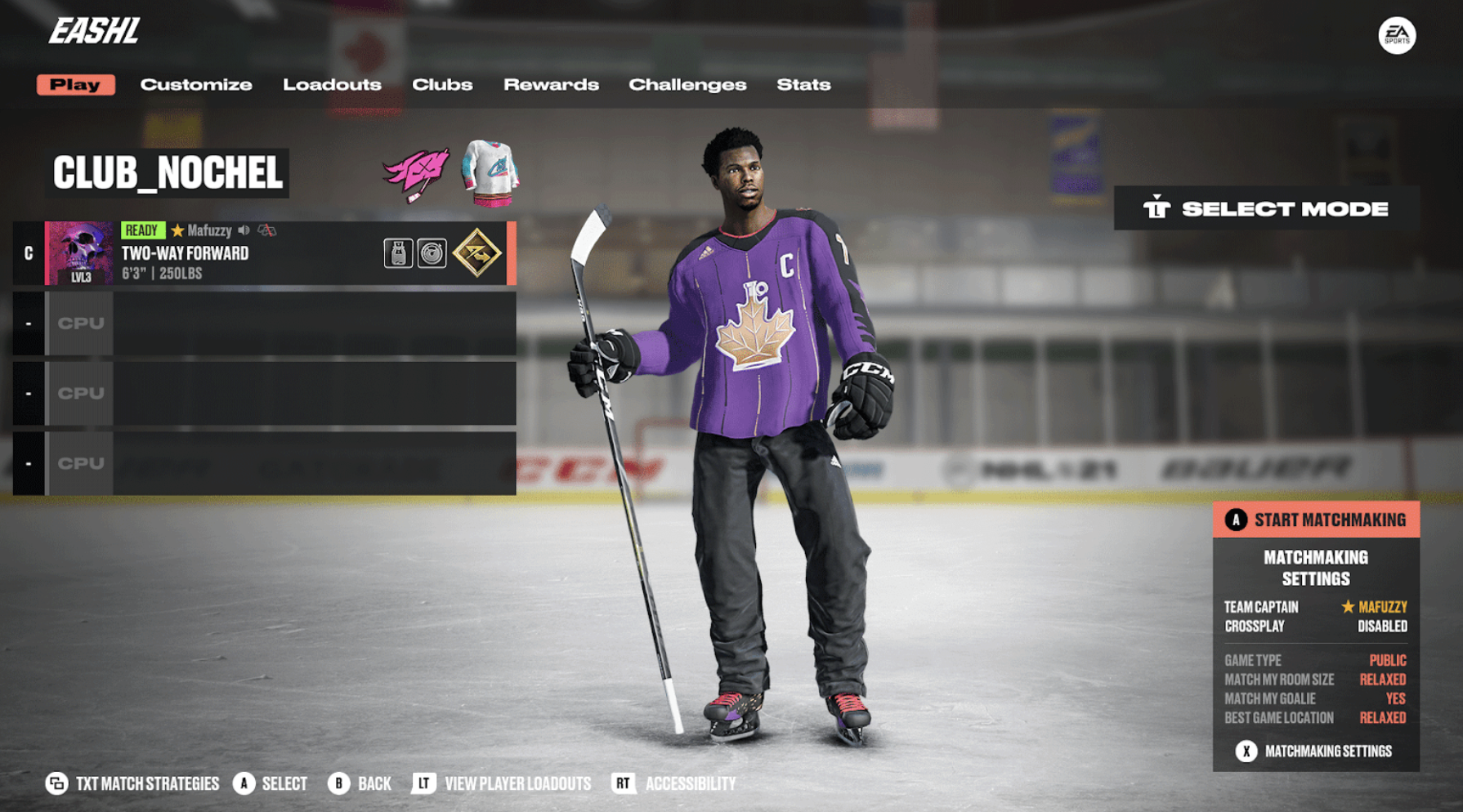
Crossplay Dressing Room UI
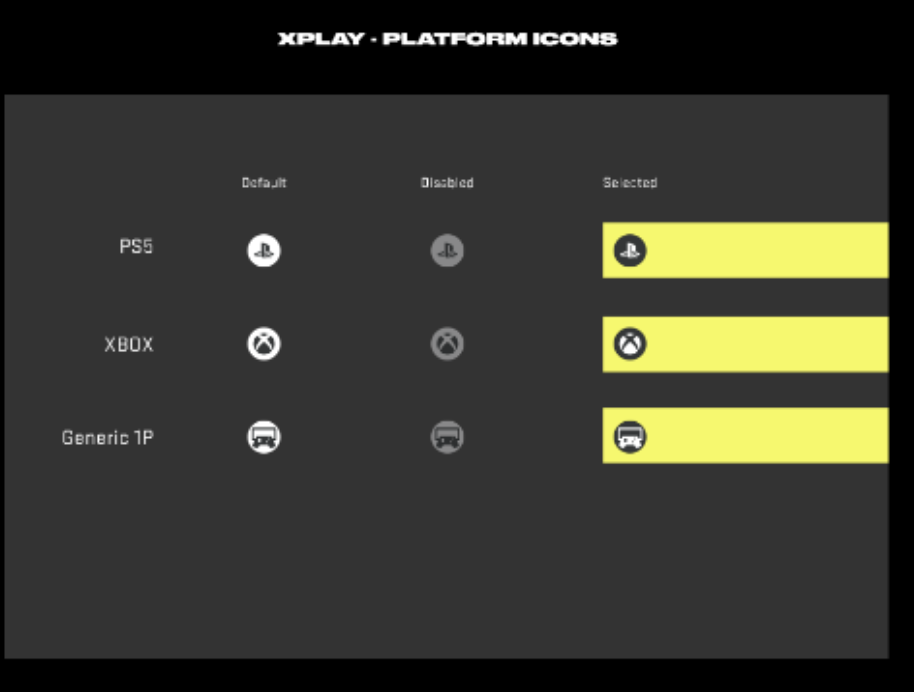
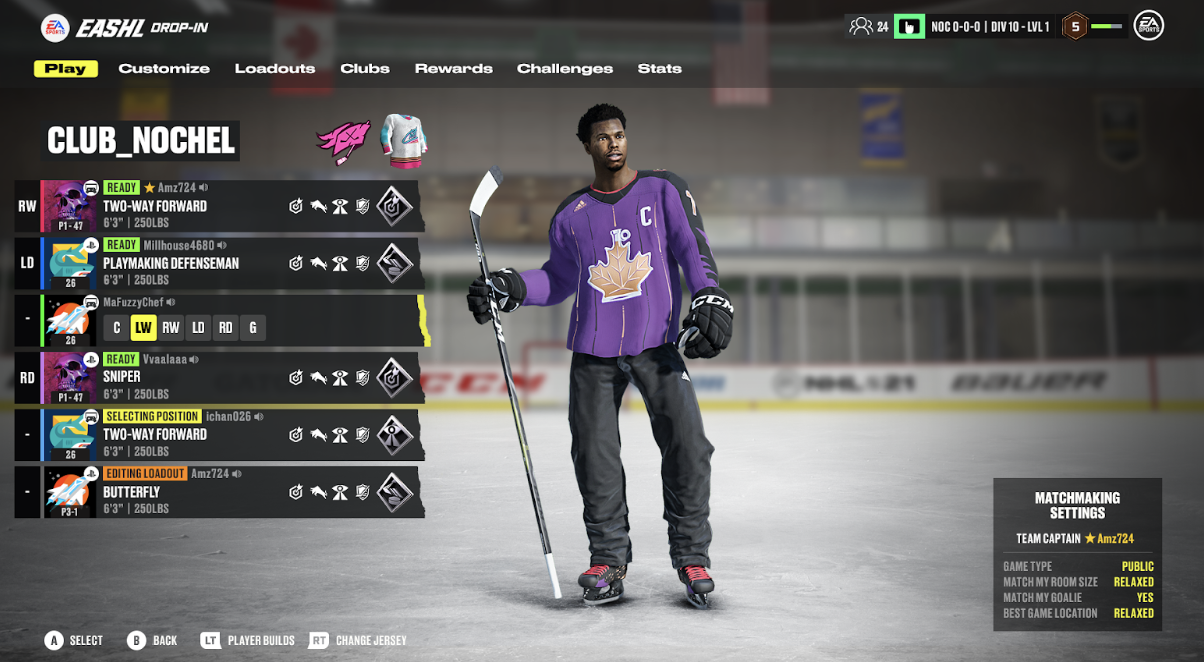
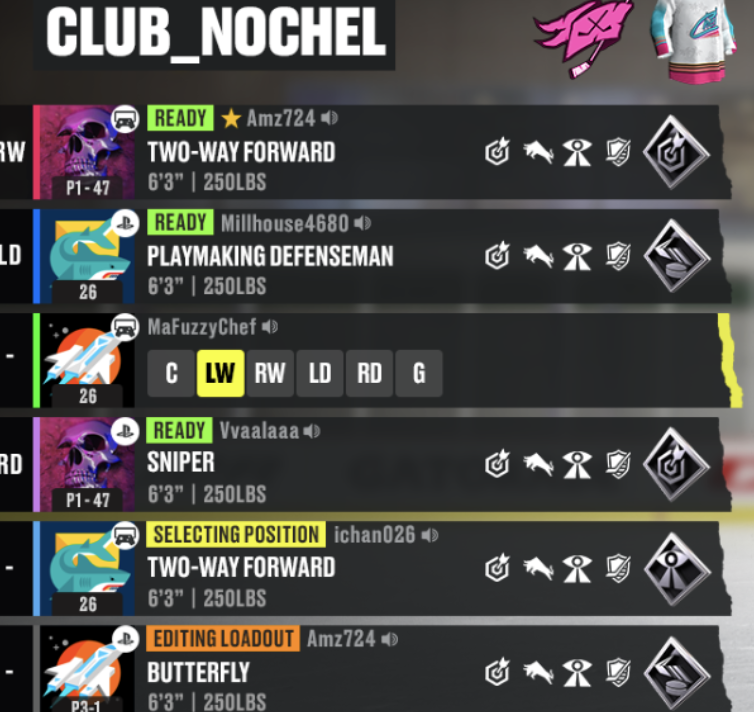
As per the mock-ups shown, the user’s platform and players sharing the same platform will be identified by an icon specific to that platform while the other platform will be indicated using a generic icon.
Users will feature a small indicator alongside their PSN ID/GamerTag indicating their personal Xplay setting - either On or Off as per the below mock-ups. If a user is crossplay enabled they will see the crossplay icon illuminated. If a user is crossplay disabled they will see the crossplay icon grayed out with a red line overtop the icon

Room Leader View
With group crossplay enabled, no special header above the widget needed until users are in a ready state and the Room Leader can Start Matchmaking. With group crossplay disabled, widget header will be needed while in an unready state calling out how many users are in a Crossplay Disabled state.
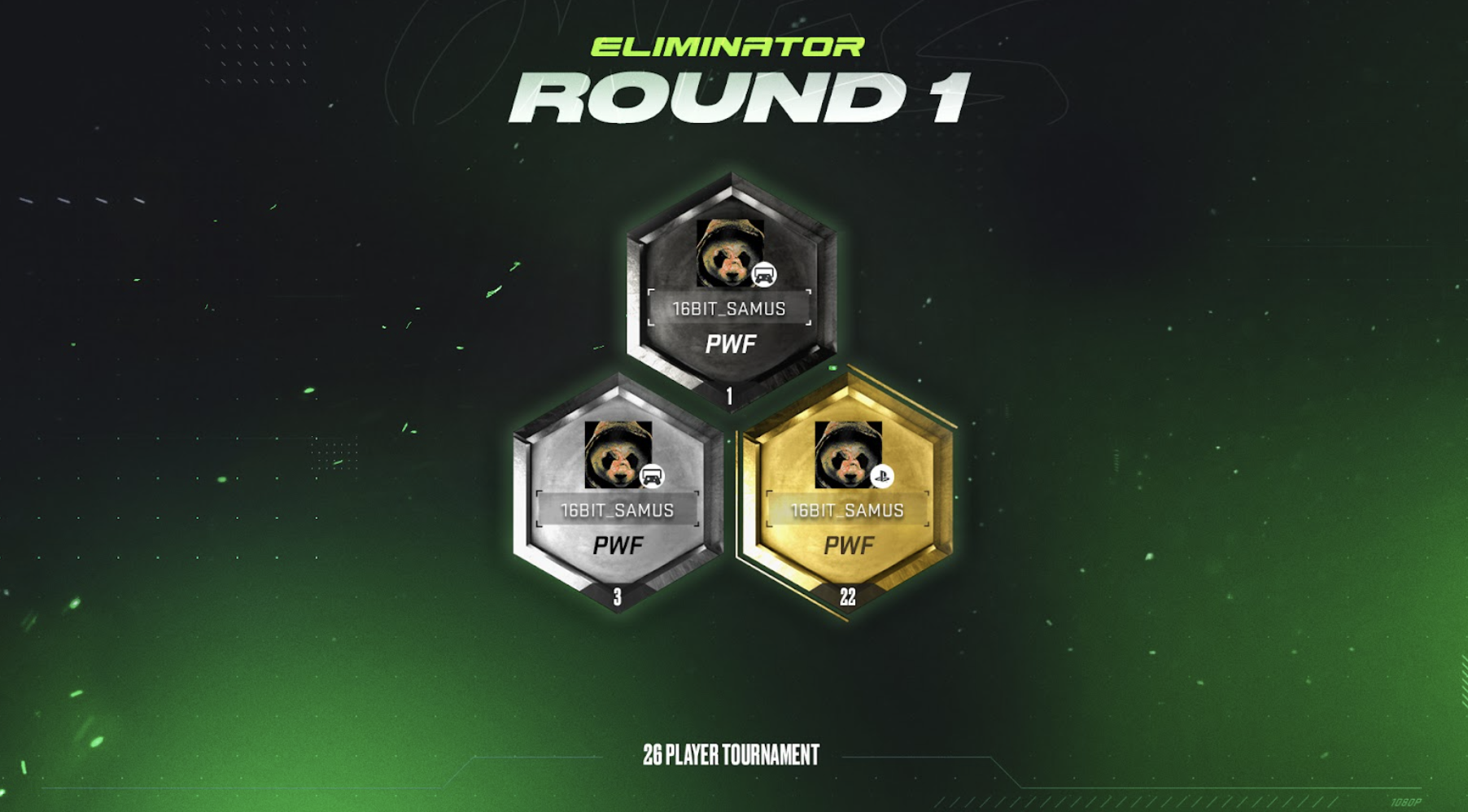
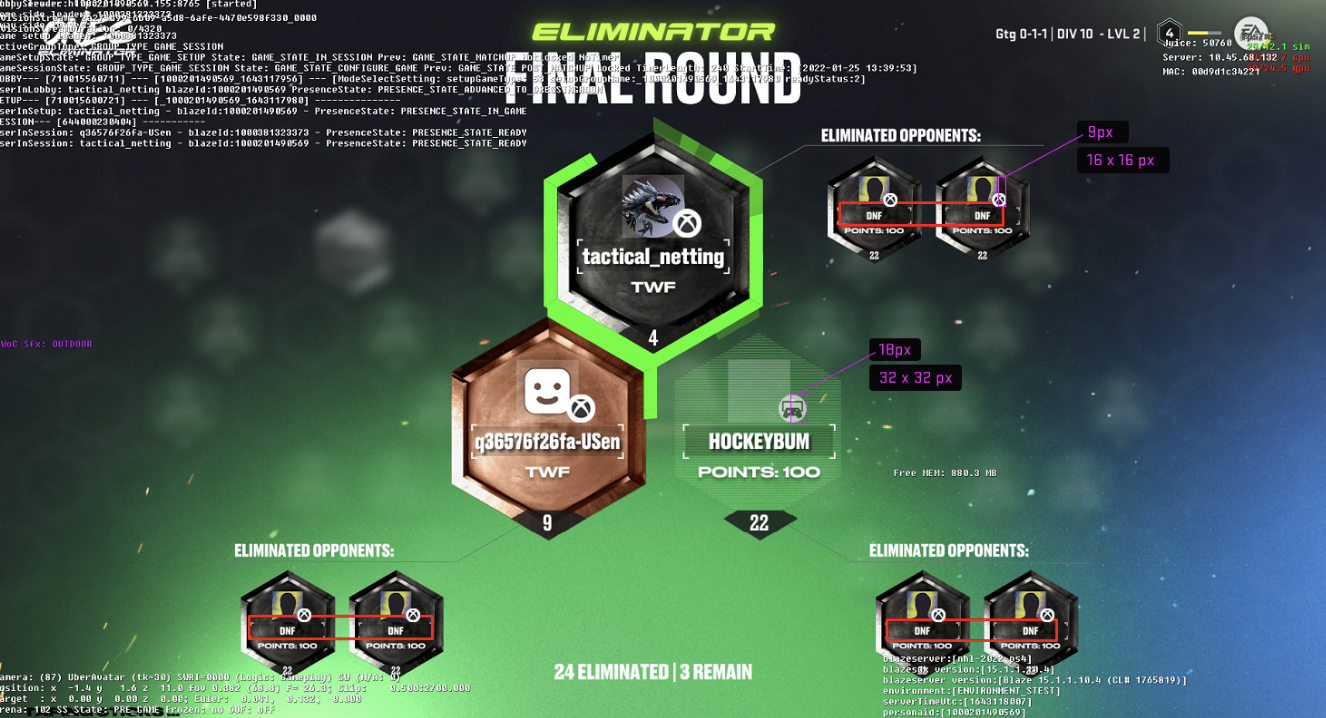
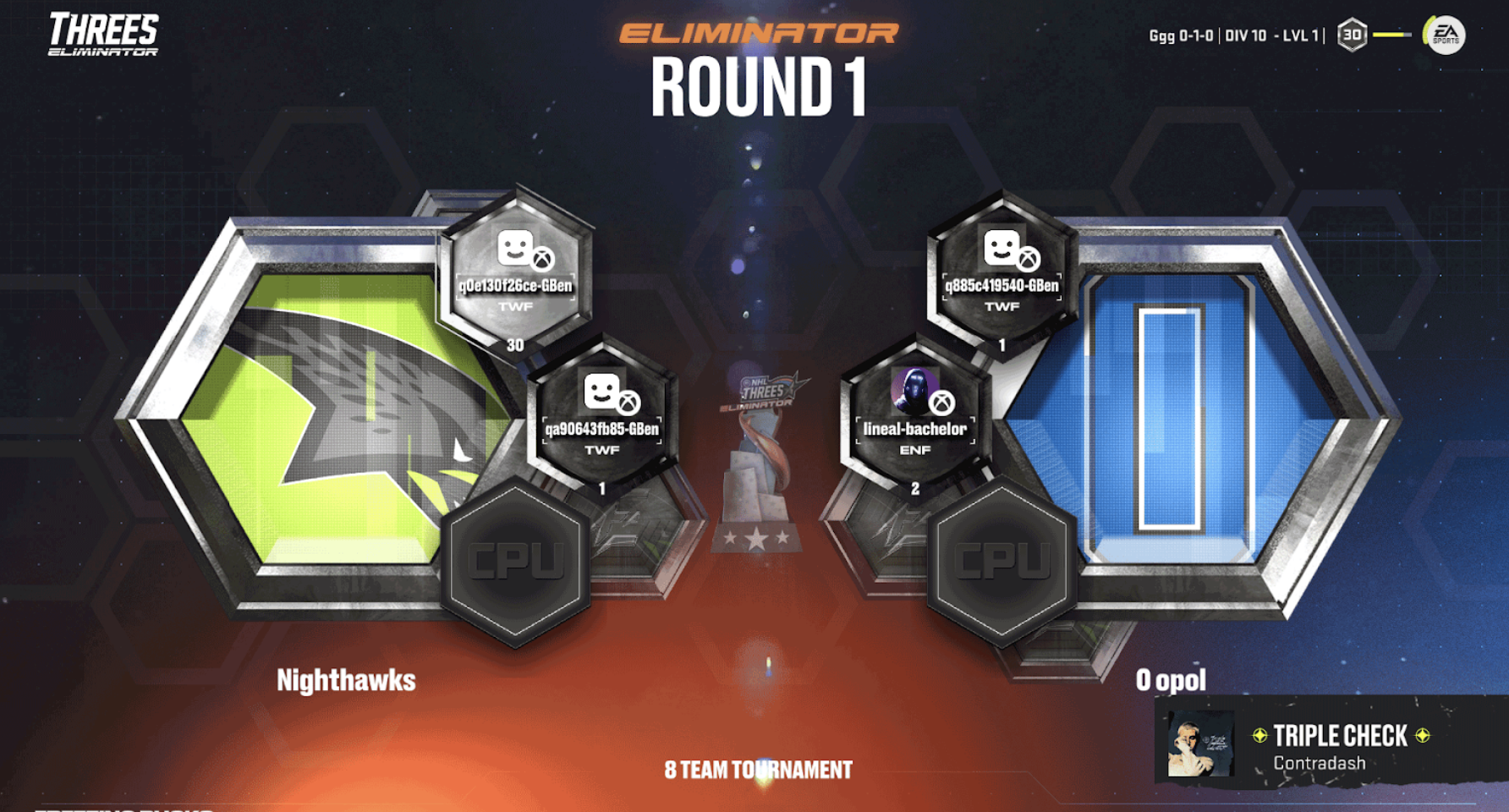
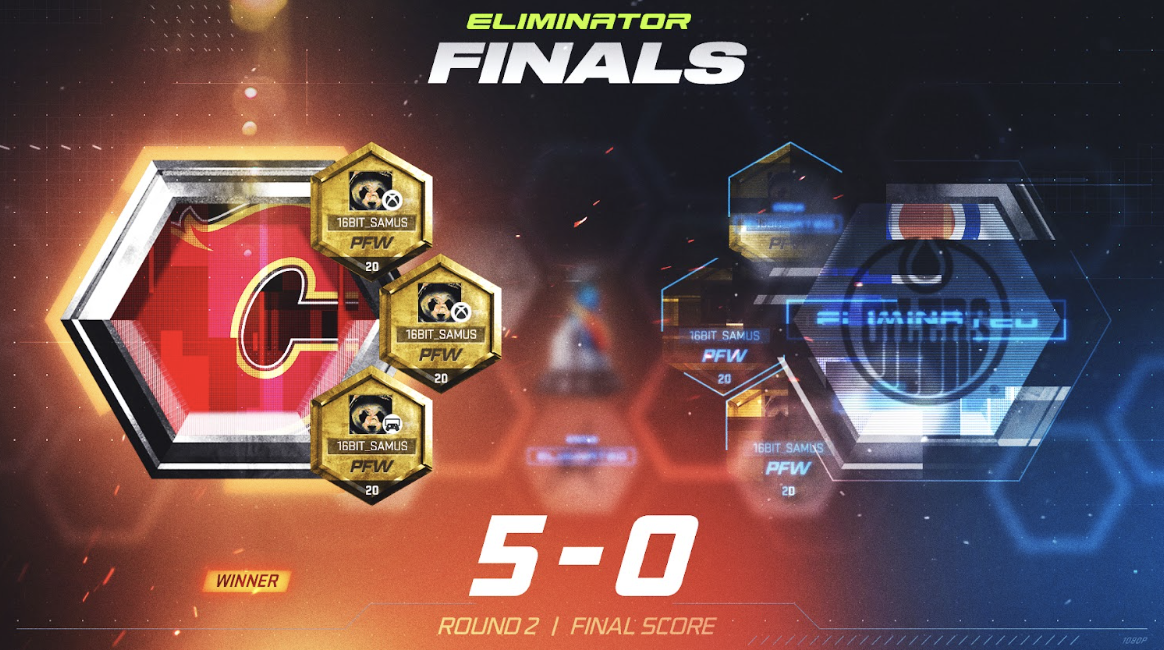
One’s Eliminator & Three’s Eliminator
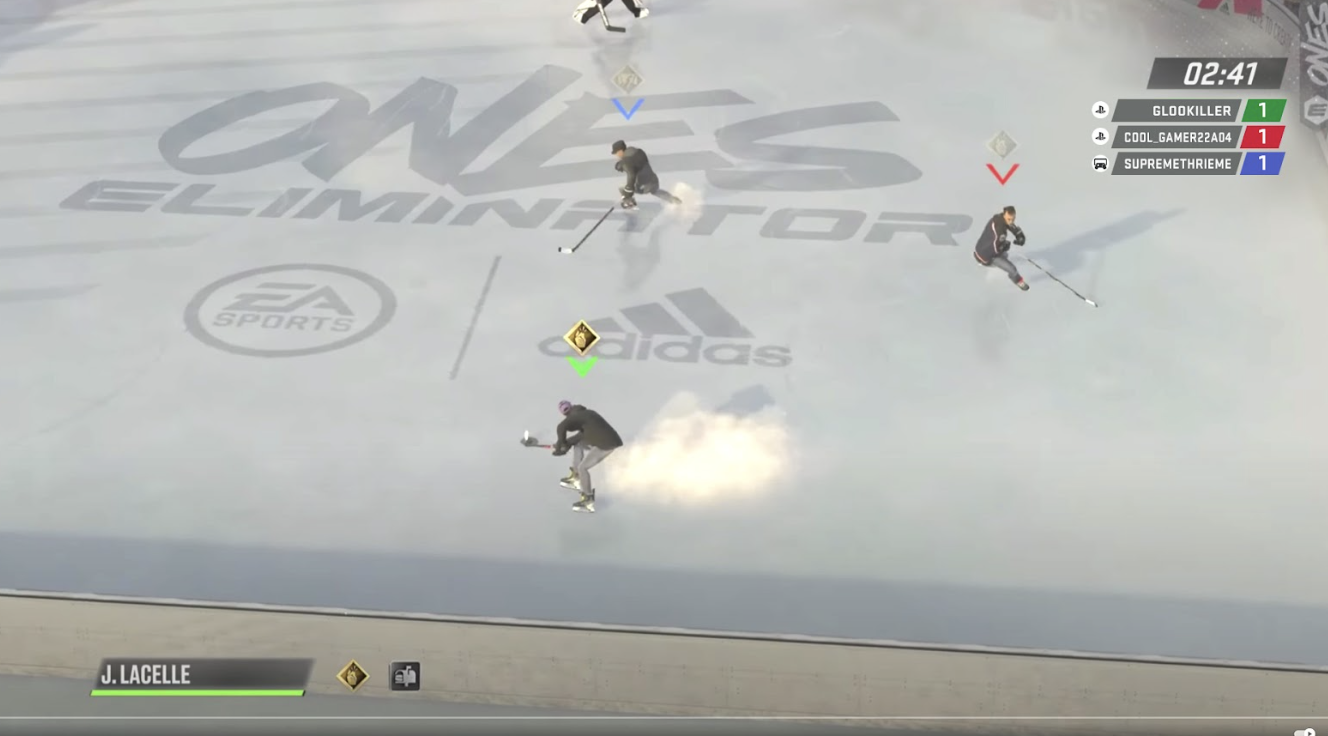
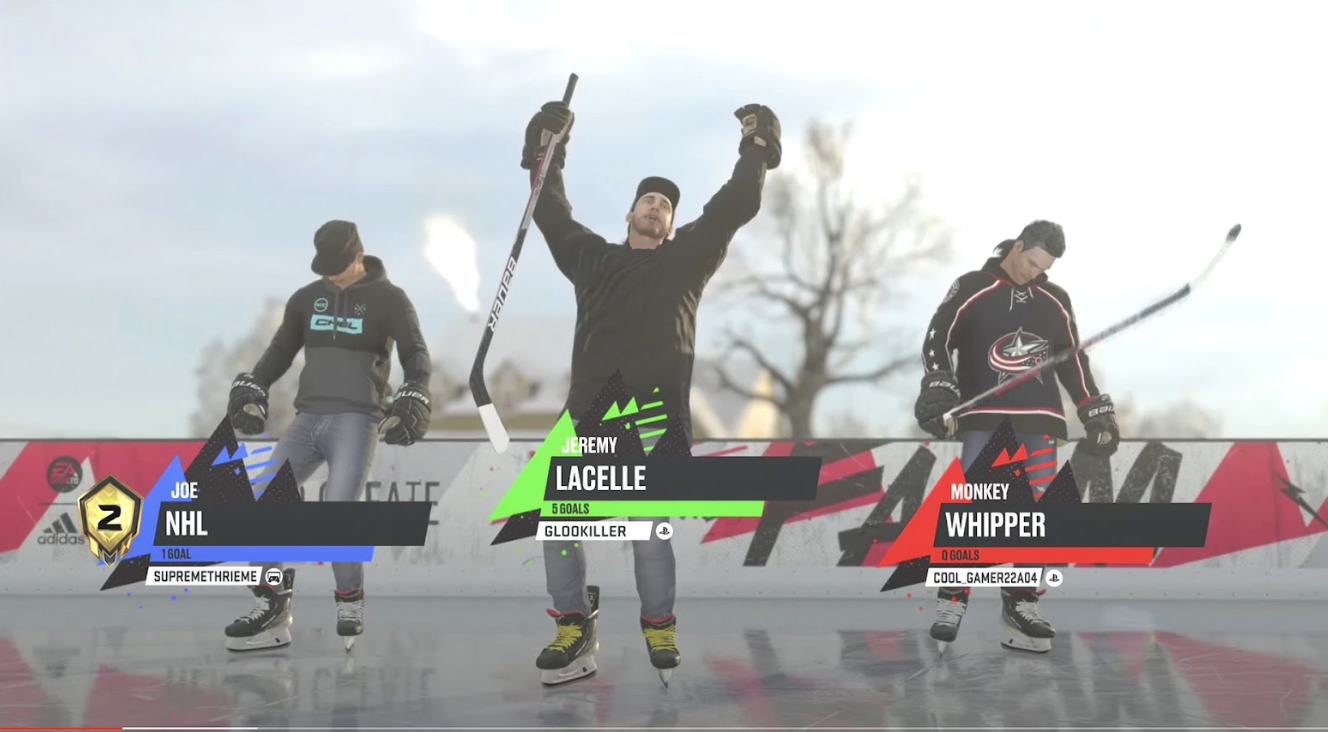
Based on the same principles that would affect the dressing room design, the platform identification icons will need to be featured together with the player’s avatar and Gamertag or PSN ID within all Loading Screens - the overall design will be identical to the current loading screens, thus only slightly altering the UI experience.
Club Members & View Club Roster
We will need to showcase the cross play icon as well as the local platform icon in the Club Members list. Opted out users should not be able to see clubs that are Opt-in. In the post matchup dressing room, we will need to showcase the cross play icon as well as the local platform icon in this screen. If the club and or users are opt out then no need to show the icons.
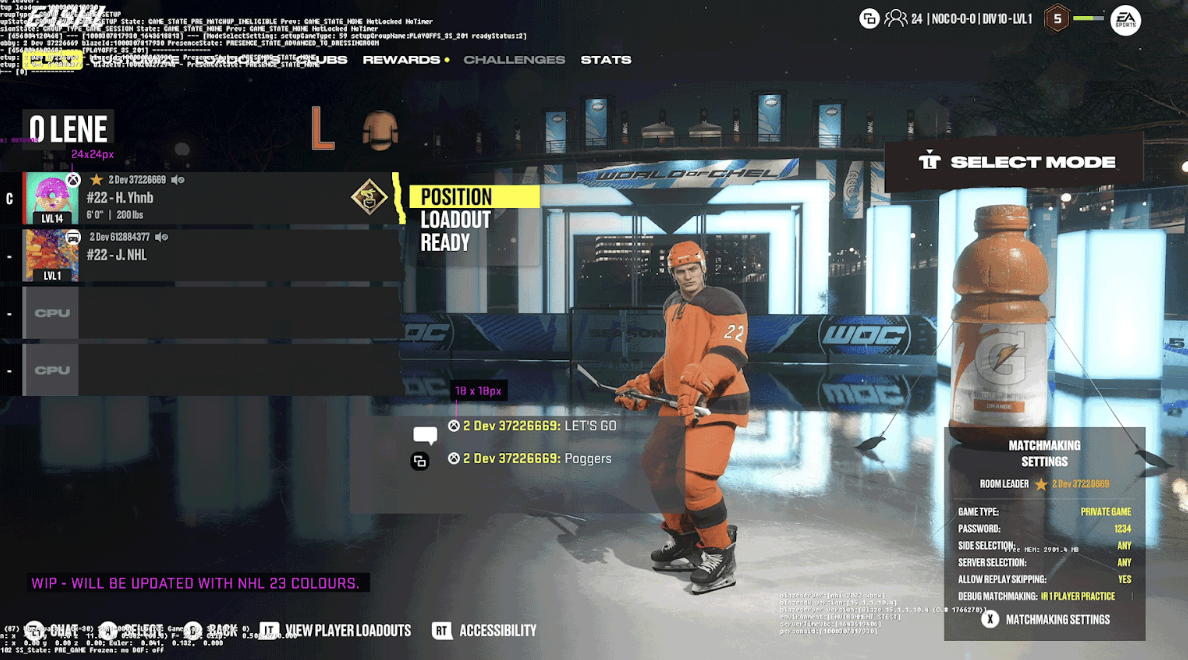
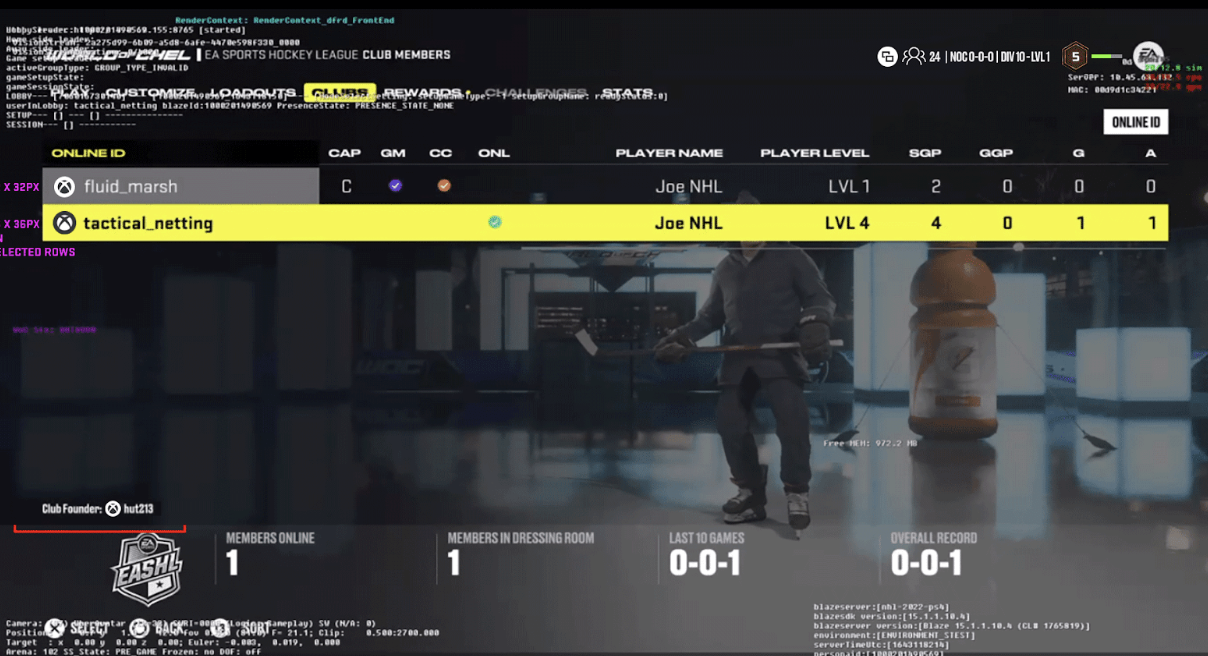
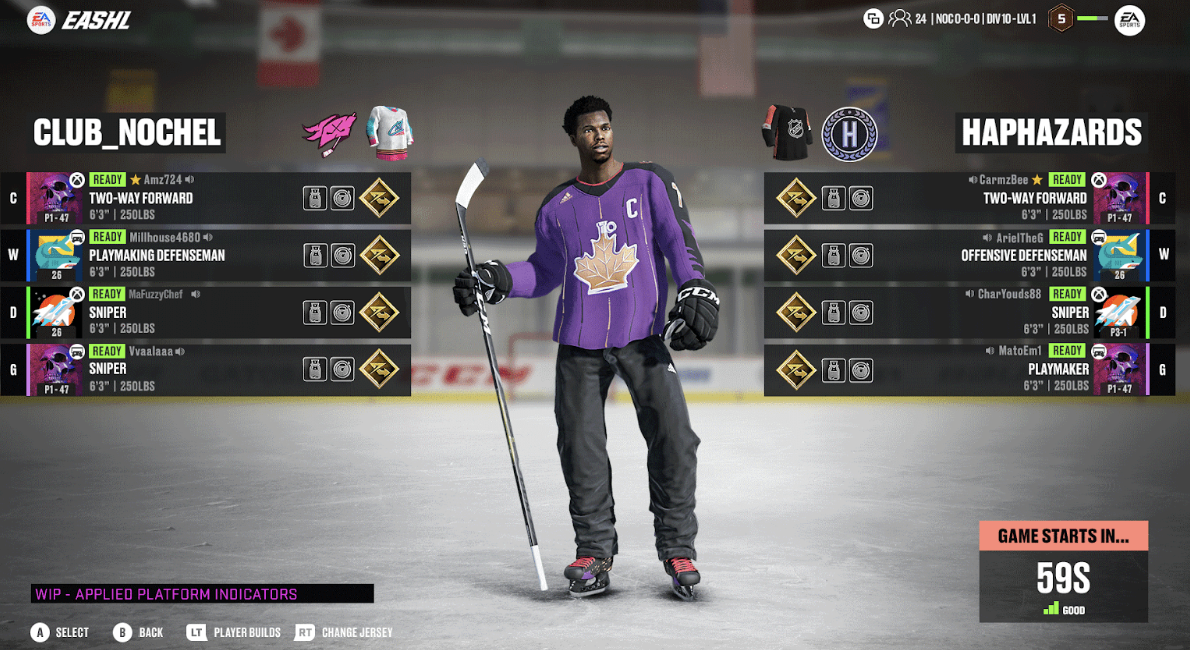
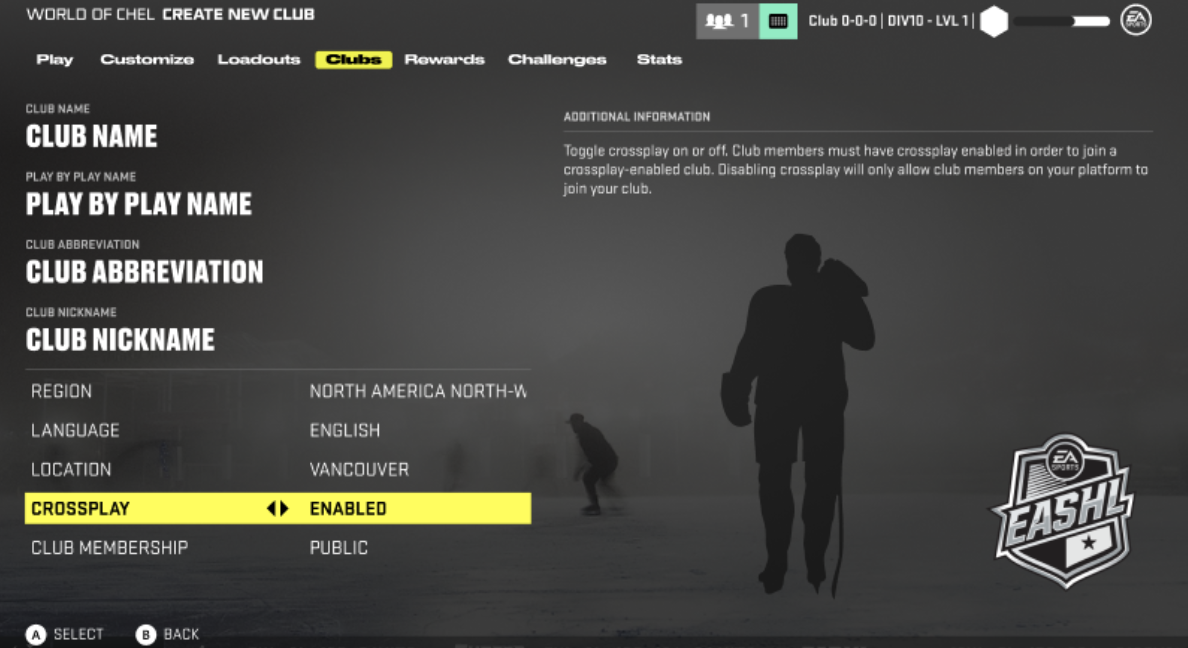
EASHL Clubs
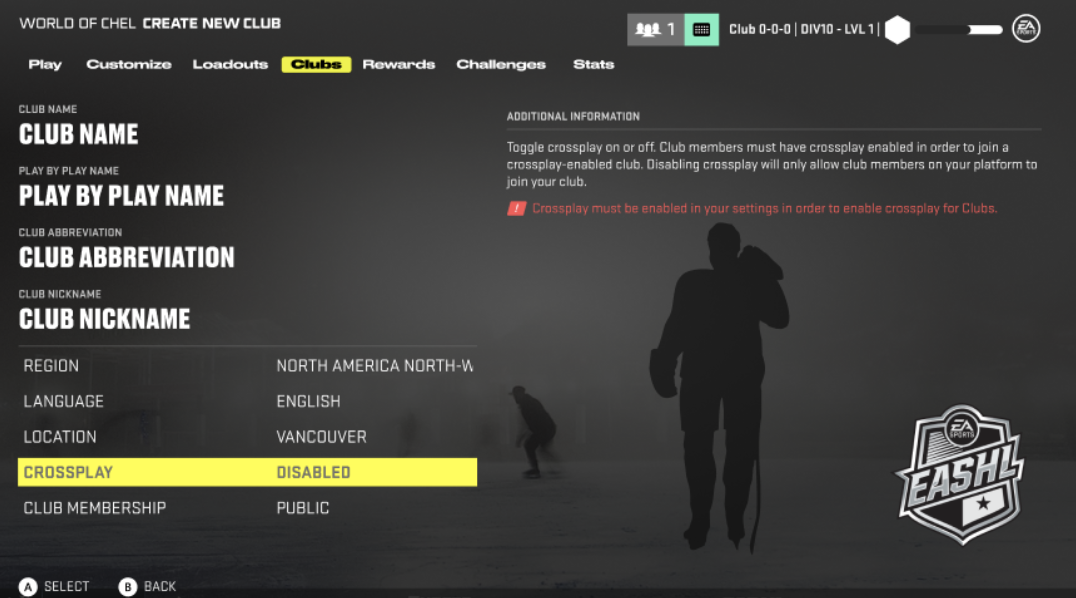
In order for a club to be eligible to matchmake in the Xplay ecosystem, the Club Creation flow will need to feature an additional setting/option similar to the individual option for toggling Xplay on/off.
We will add an additional option to the Club Creation screen called “Crossplay” with the following toggleable options, Enabled/Disabled. This option will be displayed regardless of the user’s own Opt-in or Opt-out status.
Xplay Enabled
If the user’s own Xplay setting is enabled, the Crossplay option in the Club Creation flow will also be Enabled by default
The user CAN change it to Disabled however if they wish the club to only matchmake on the creator’s own platform
Xplay Disabled
If the user’s own Xplay setting is disabled, the Crossplay option in the Club Creation flow will be locked to Disabled to ensure that the club setting cannot override the users own setting (user’s own setting is strick so it must take priority)
Once a club is Xplay enabled, the aforementioned club will be able to match within the larger pool consisting of all clubs that have this option enabled as well as clubs opted out but also match their own platform. Because Xplay enabled clubs can consist of users from either platform, we will need to specify which platform the club belongs to so account for opt-out users and clubs as well. We will need to create the club as an Xbox or Sony club, which will be dependent on which of the platforms the club creator is on at the time of club creation.
Edit Club/Custom Details Customization
Much like the Club Creation flow, the Edit Club flow will need to also contain the new “Crossplay” option. This will showcase what was last saved to the server,however we’ll need to ensure specific logic is being respected.
Xplay Enabled
If the user’s own setting is Opt-in and they created the club as Xplay Enabled, we will actually show but disabled the Crossplay option in the Edit Club flow
We DO NOT want a crossplay Enabled club to be able to change to a crossplay Disabled club
Xplay Disabled
If the user’s own setting is Opt-in but created the club as Xplay Disabled, we will showcase the Crosspay option as Disabled, however the user can change the club to Crossplay Enabled
Doing so will trigger some checks prior to saving the changes,which may involve removing any Opt-out club members from the team (See section 4.1.5 below
If the user’s own setting is Opt-out and the Club was created as Xplay Disabled, we will show the Crossplay option as Disabled and we will lock that option and show specific text that informs the user that their are opt-out so the option is locked
Search for a Club
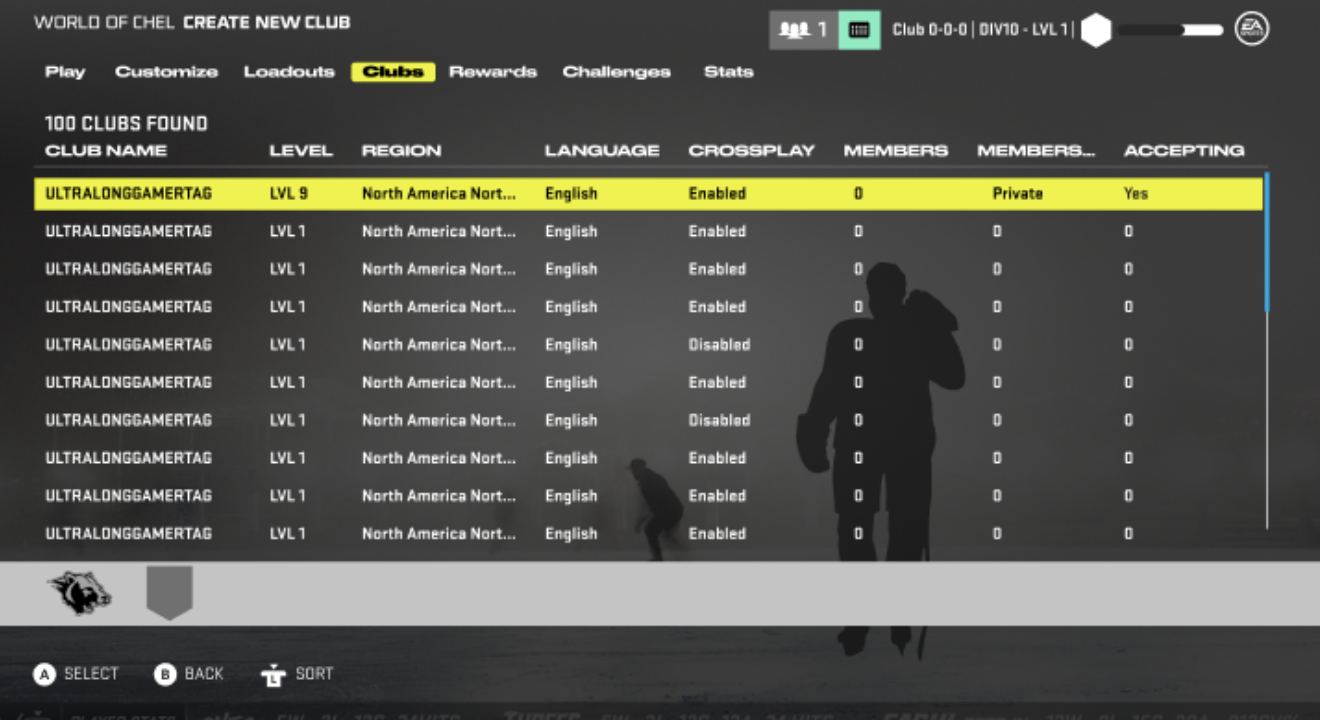
The Club Search option will contain a “Crossplay” option as seen in the Club Creation flow. There will be a column in the Search Results that will list all the clubs that have the option Enabled or Disabled depending on what the user had searched for.
Based on the latest proposal for reducing scope in Phase 1 by not allowing Mixed Clubs, Searching for clubs either in an Enabled or Disabled state will return only ‘home’ console clubs either Xplay Enabled or Disabled
Xplay Enabled
If the user’s own setting is Opt-in, the user will see the Crossplay option in the Club Search screen defaulted to “Any” but can toggle that option to Enabled or Disabled as well
The “Any” option includes all clubs in the ecosystem in the search but will result in the column in the Search Results still specifying either Enabled or Disabled
If the user’s own setting is Opt-out, the user will see the Crossplay option in the Club Search screen defaulted and locked to Disabled
This is required because we can’t have user’s seeing Crossplay enabled clubs
The Search Results will still show Disabled in the Crossplay column
Crossplay Opt-In/Out
User wants to change from Opt-in to Opt-out and are on a Crossplay Disabled Club
If user is already in a Crossplay Disabled club,,changing their personal setting to Opt-out can be done without any other considerations
User wants to change from Opt-in to Opt-out and are on a Crossplay Enabled Club
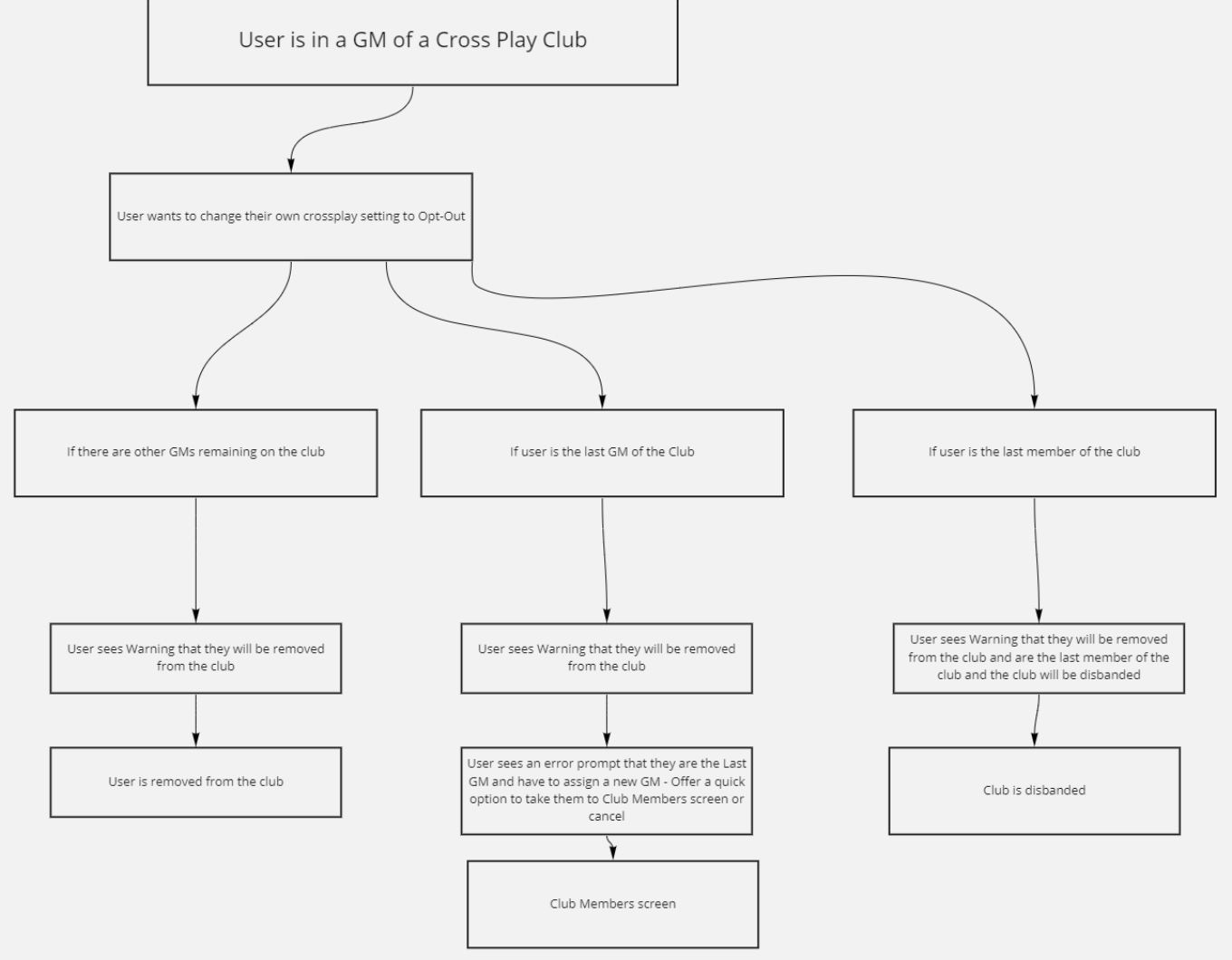
If user is already in a Crossplay Enabled club and now wants to change their personal setting to Opt-out, we must remove the user from the club, however much like the Leave Club option in the WoC HUB, we have to account for the different GM statuses and Disbanding of club scenarios that could arise (See flow chart below)
In all cases, the user can change their setting, but upon trying to save that setting we do a validation check to see if the user CAN in fact commit that change (below is a list of the scenarios)
If user is not a GM or if user is a GM and there are other GM’s on the club
If the user is not a GM they can change their option and upon trying to save we would prompt with a popup confirming that they want to be removed from the club due to incompatible crossplay settings
If user is the last GM, but there are other club members on the club
If the user is the last GM they can change their option and upon trying to save we would prompt with a popup confirming that they want to be removed from the club due to incompatible crossplay settings
We then run another check to ensure they aren’t the last GM while there are other club members on the club
If that’s true, we need to prompt another popup explaining that they cannot leave without assigning a new GM
We then have options for the user to cancel and a “go to Club Members” option where the user can manually go resolve the conflict
Upon assigning a GM or not we take the user back to the Crossplay settings screen for the user to try to make their settings change again
If user is the last member of the club
If the user is the last member of the club, they can change their option and upon trying to save we would prompt with a popup confirming that they want to be removed from the club due to incompatible crossplay settings and that the club will be disbanded because they are the last member
We will offer the options to Disband Club and Cancel
Club Invites
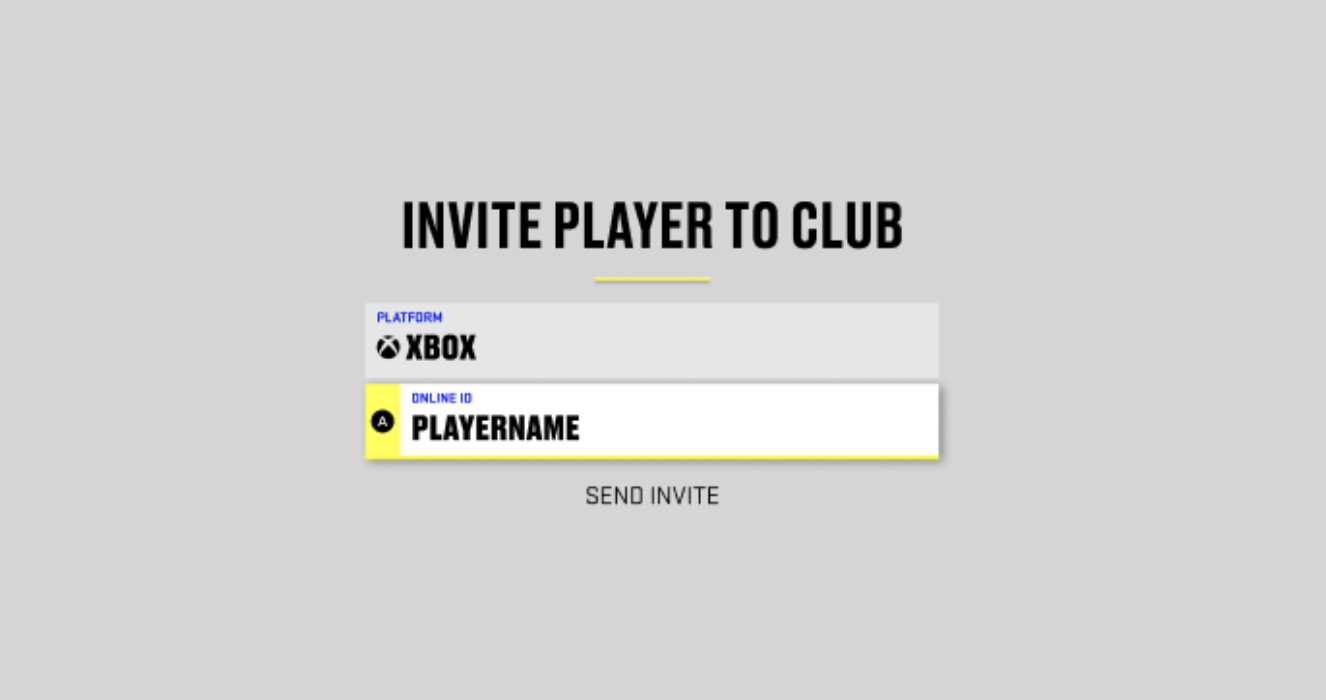
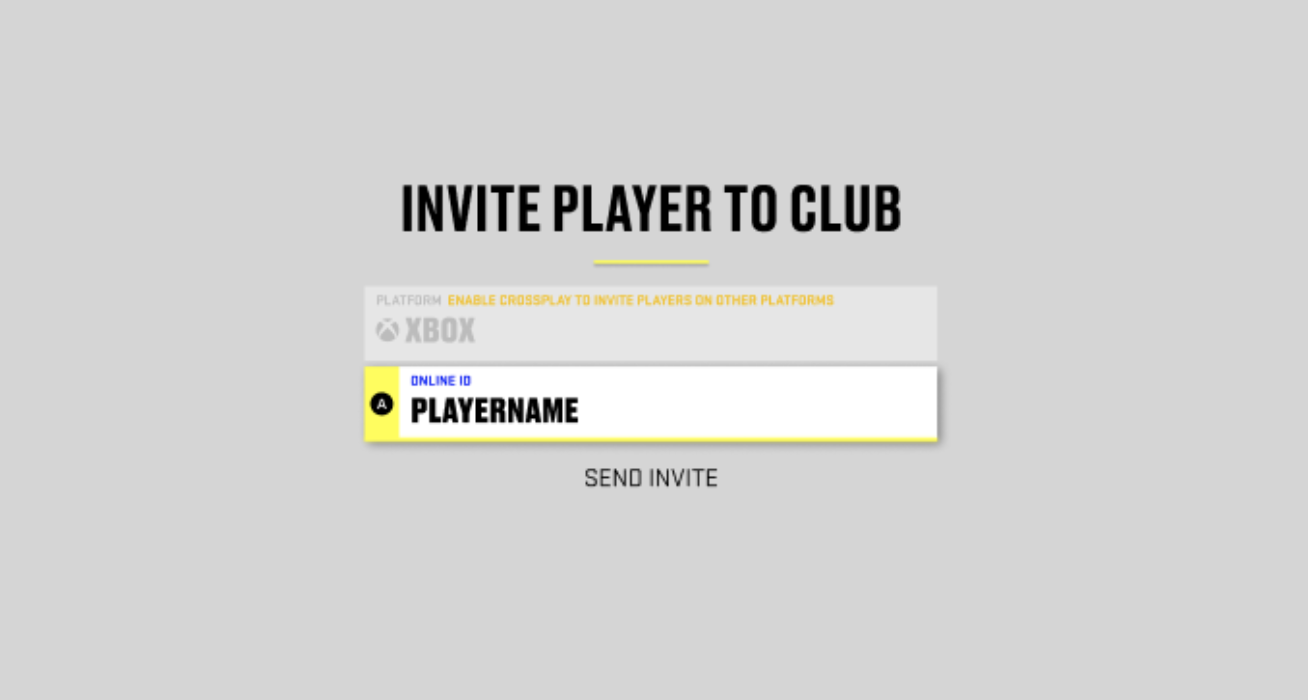
Xplay-enabled Clubs - Xplay enabled users will be available to filter the search between ‘Xplay or ‘PS’ (home console)
Xplay-disabled Clubs - will only search in a platform specific pool of users, either Xbox or PS, depending on the platform the club and automatically the user searching is part of
As per the current functionality, the user searching will need to fill in the PSN ID or Gamertag
The result/results returned besides the user’s PSN ID/Gamertag will also need to feature a clear platform indicator - as per all other Xplay instances where we display user’s identification.
Block Users
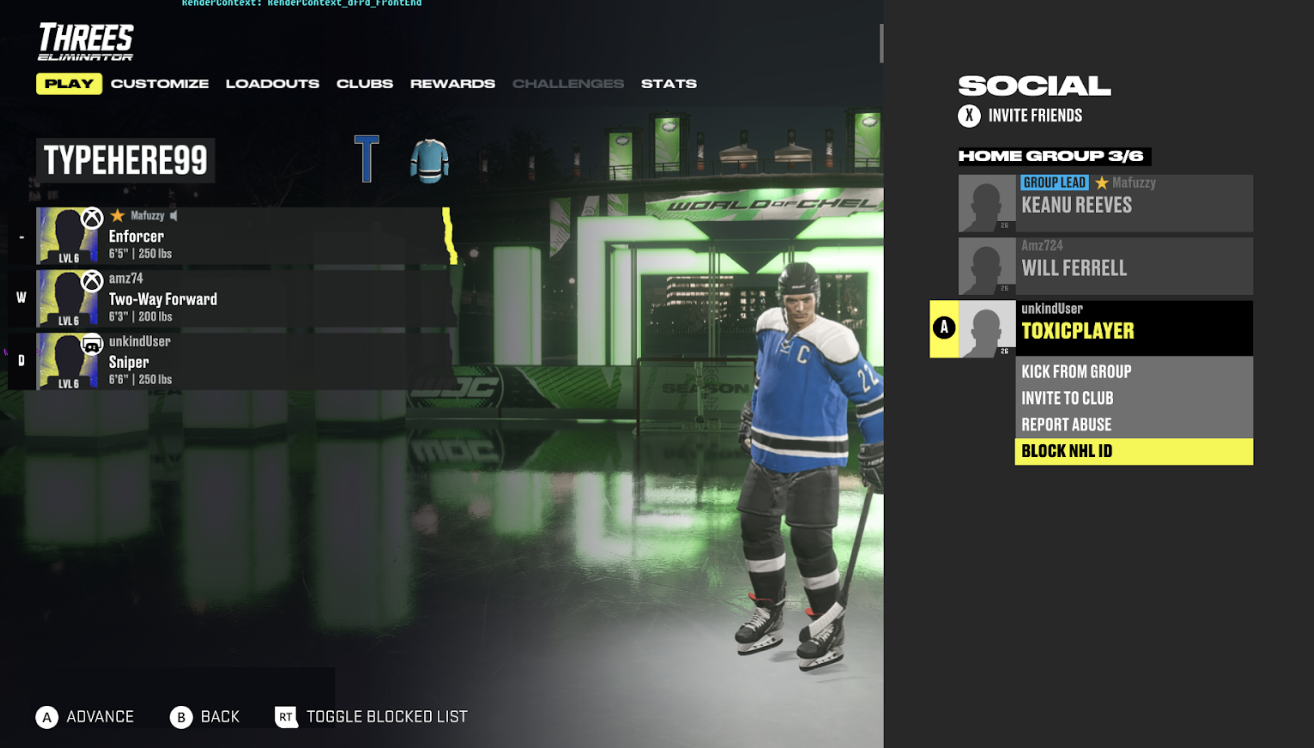
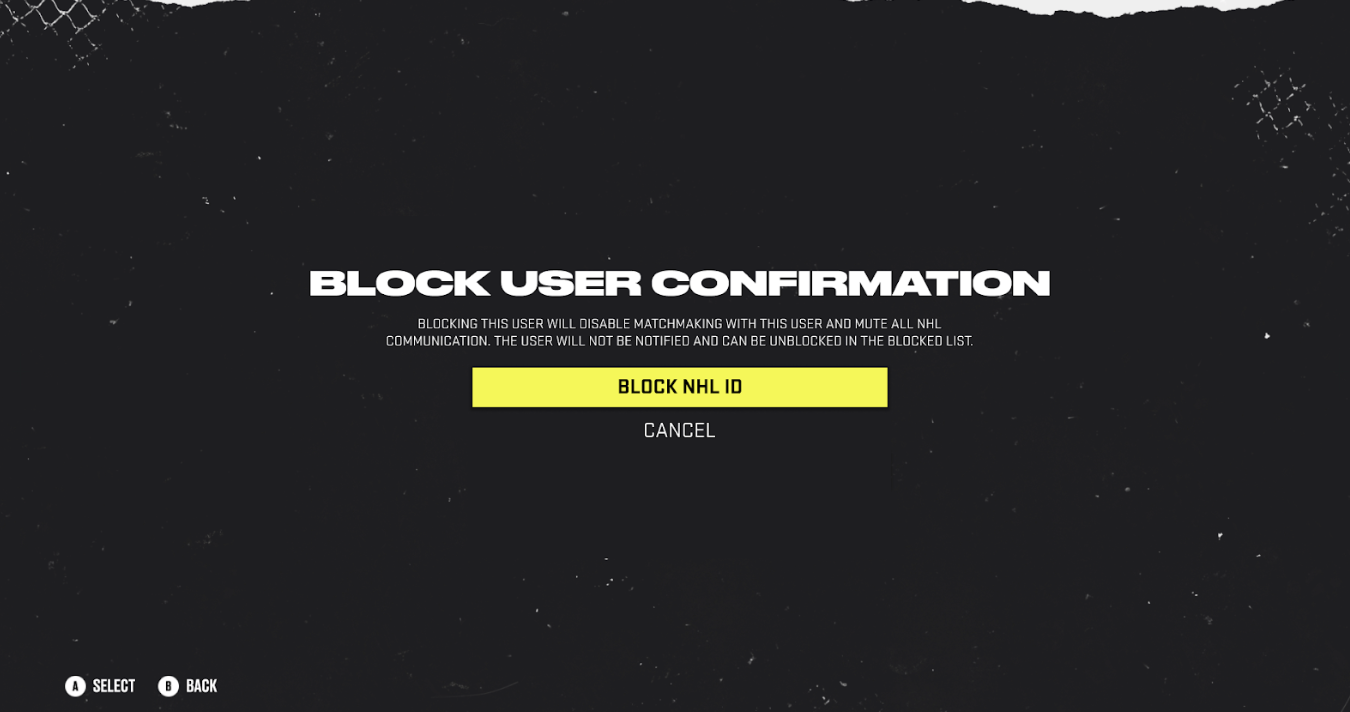
Blocking an user through the newly added option will have the following effects:
All potential communication channels between the 2 will be blocked
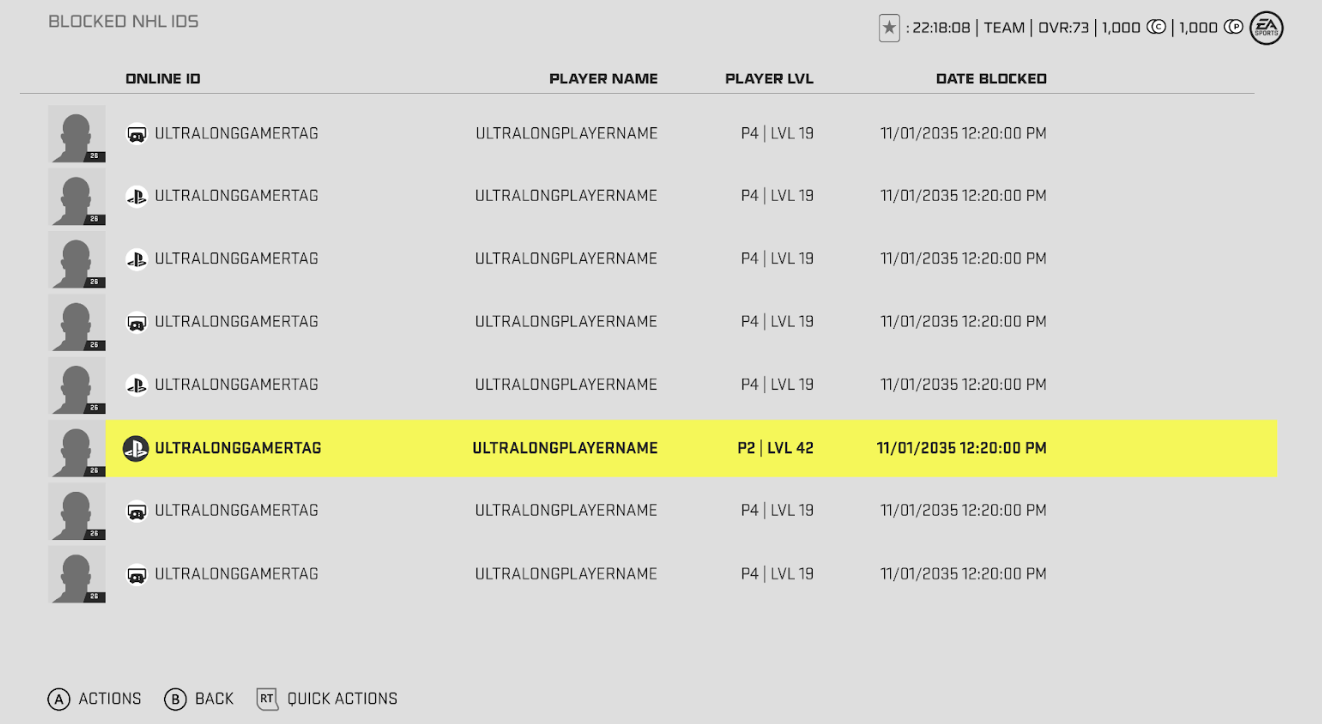
The user will be added to the blocked user list in-game
The blocked user will not be notified about this
The blocked user’s player card, will visually feature a ‘Blocked’ visual indicator besides the Online ID (PSN ID or Gamertag) (UI Design detailed mock pending)
Future matchmaking between the 2 users should no longer be possible as long as the aforementioned user is blocked
Once the blocking action has taken place, the user performing the action should be able to, following the blocking action:
Unblock
Report
Kick player from group (if DR Leader) - applicable in the Social widget
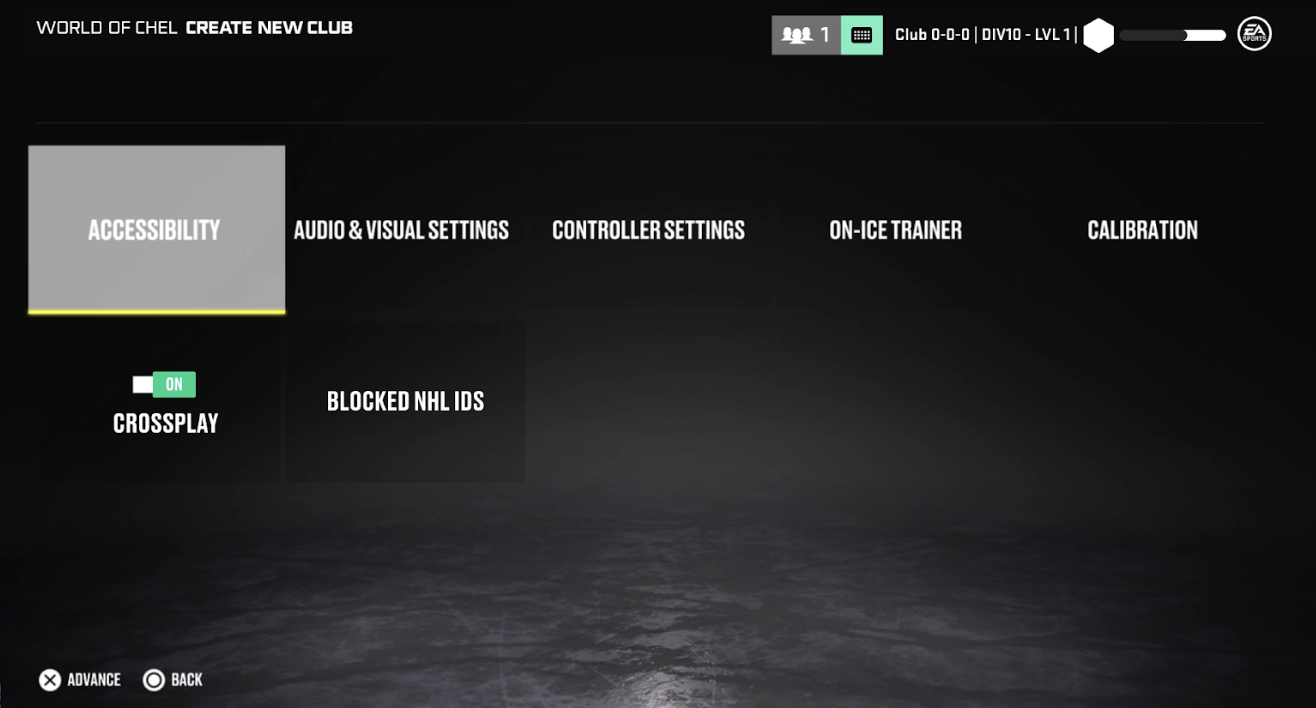
Blocked users will be added to the Blocked user list, this list will be accessible in the WOC Settings section as per the wireframes below.
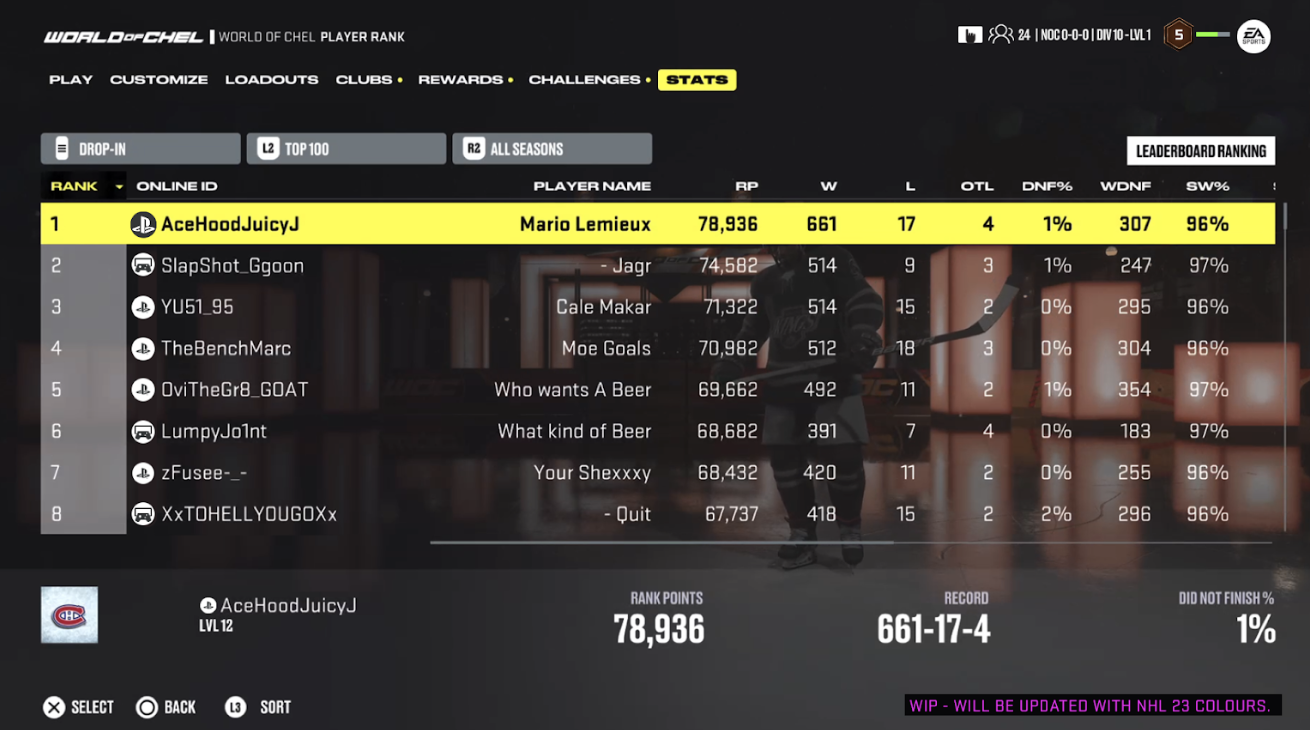
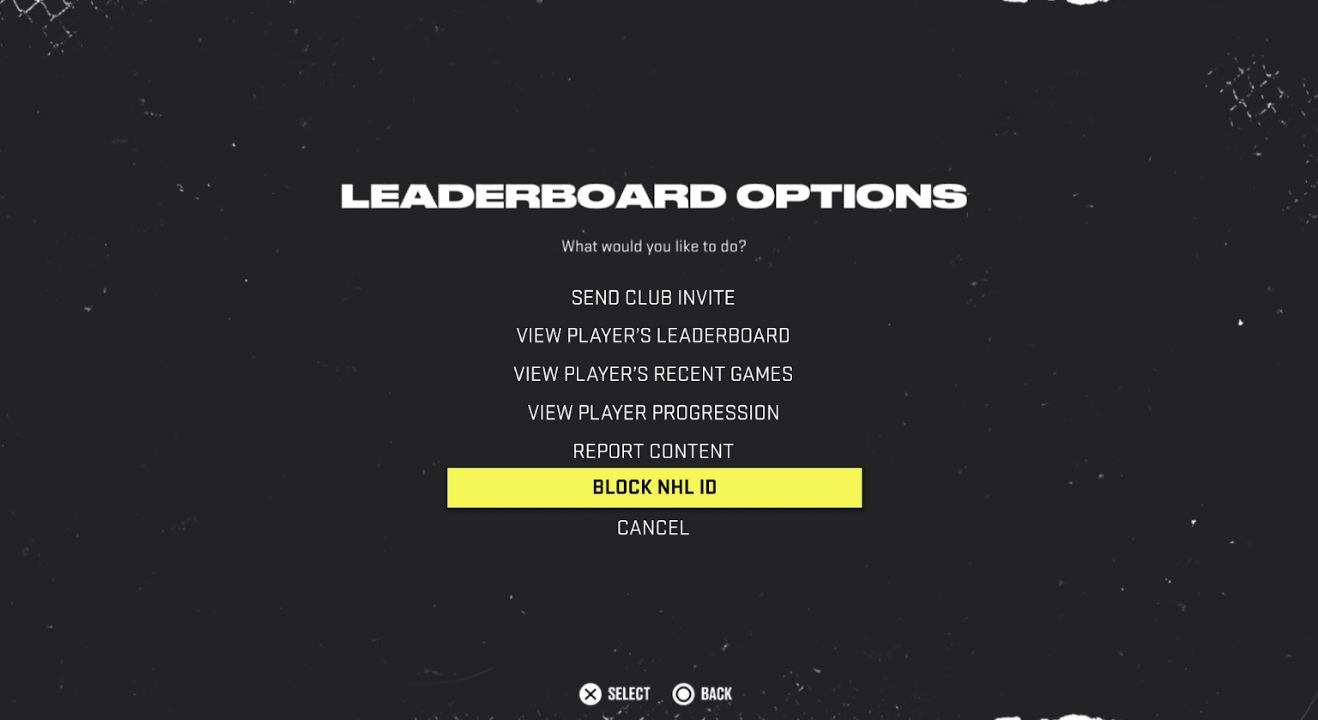
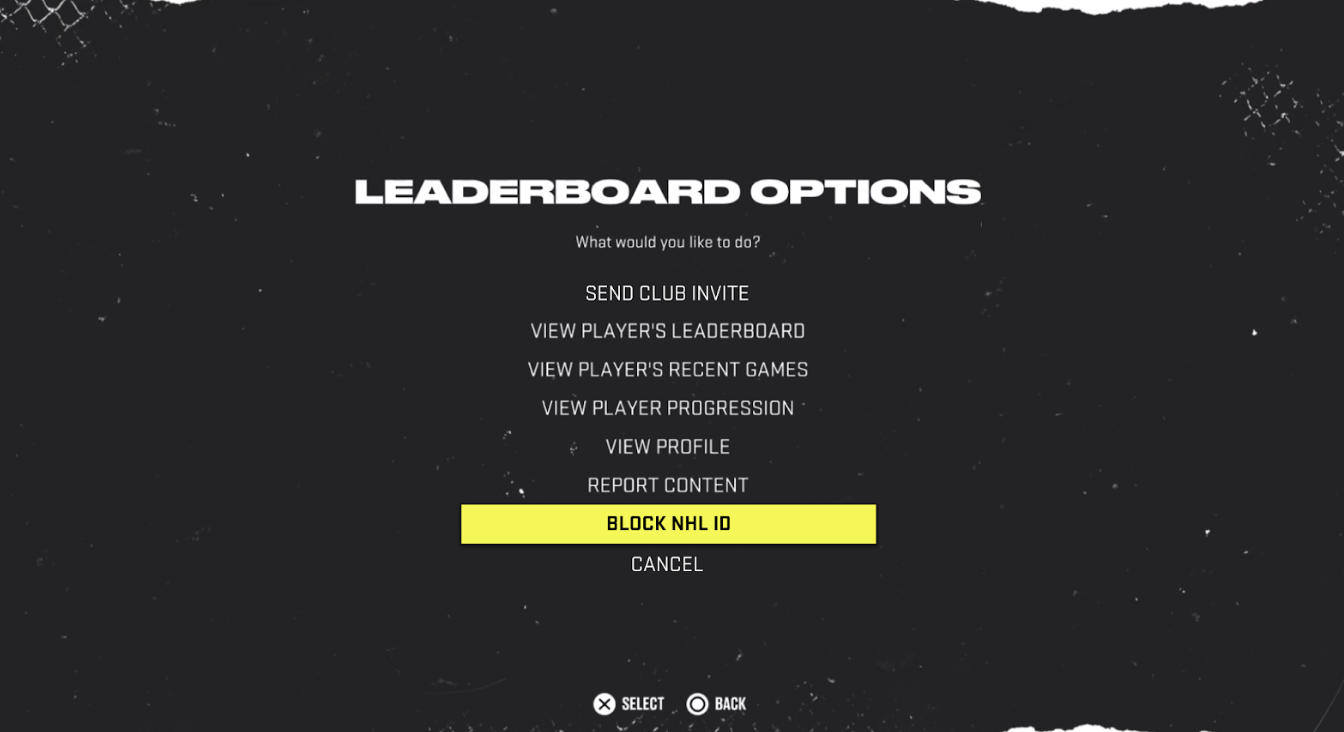
The ‘Block’ option will also be accessible in all other instances where we enable the user to take actions in regards to another user. Leaderboards example below.
‘Unblocking’ a blocked user will be done by accessing the ‘Blocked’ list, here an user will be able to either ‘Unblock’ or ‘Report’ the blocked user. Unblocking will require a confirmation pop-up, identical to the Block user confirmation (above) but displaying a different text and the ‘Unblock’ option.
Self Reflection
While working on this game, I learned how to work well in a large team. I learned the steps involved in making sure a product is ready for release by finding and writing up bugs as well as writing and running test cases. As a result of this project, I helped my team ship my first AAA title in NHL 23.
